Setting Up 16:9 Slides in PowerPoint
For PowerPoint slides, we prefer your presentation to be created in a 16:9 format, (versus the older 4:3 format). If you are unable to provide a 16:9 formatted presentation or recreate an existing 4:3 presentation into 16:9, we can still project your slides. However, the 4:3 slides will fit inside a 16:9 window, leaving black margins on the sides, not allowing you to use the full area of the screen.
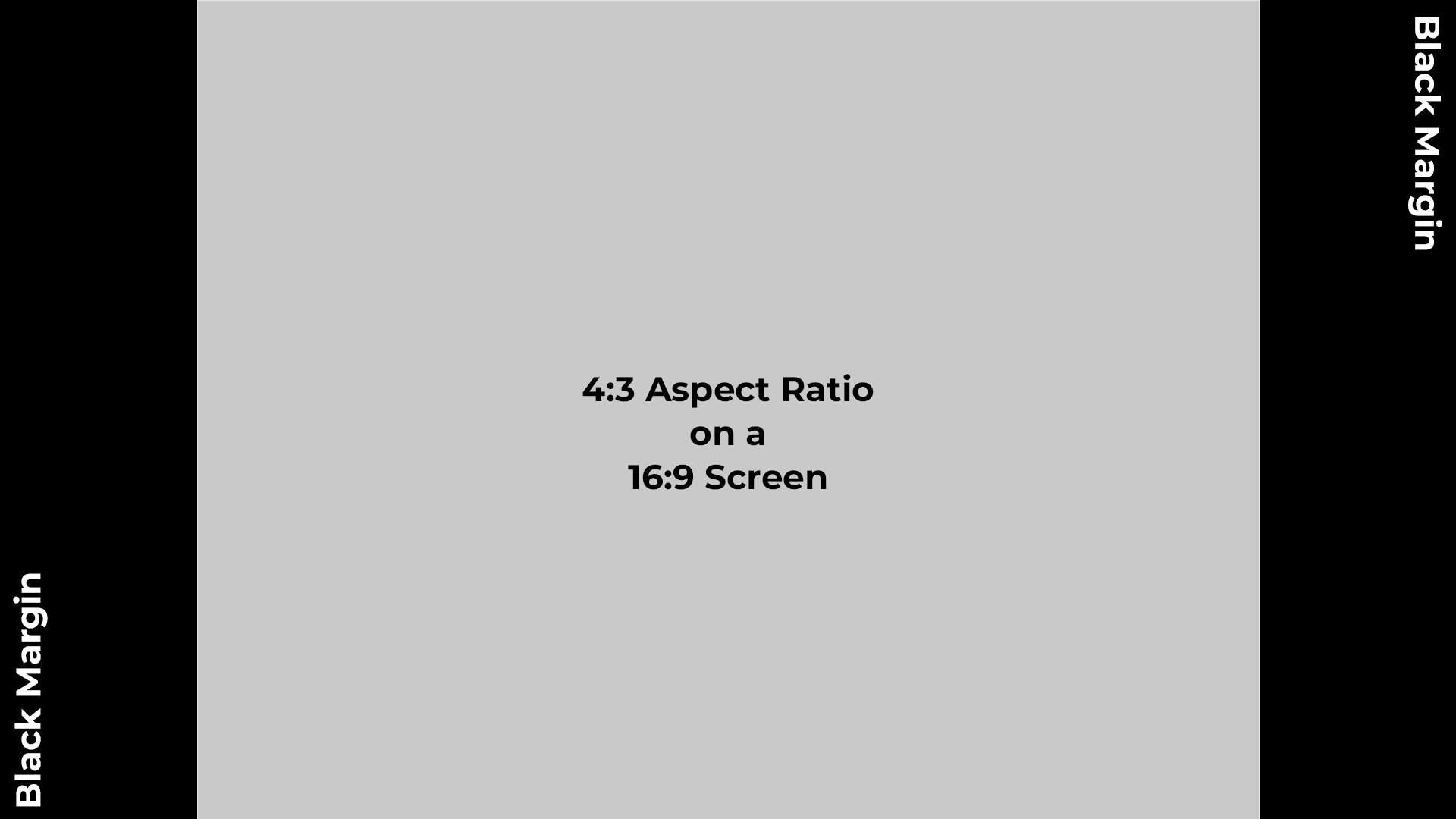
In addition to losing screen area, your presentation will not be consistent with other presentations that are in the 16:9 format.
Unfortunately, you cannot simply convert an existing 4:3 presentation into 16:9. Instead, you must create it from scratch. Here is how to set the page setup to 16:9:
- Go the Design tab
- Select Slide Size, (located near the far right of the tool bar).
- Select Widescreen(16:9) Note: Older versions of PowerPoint list it as “On-screen Show (16:9)”
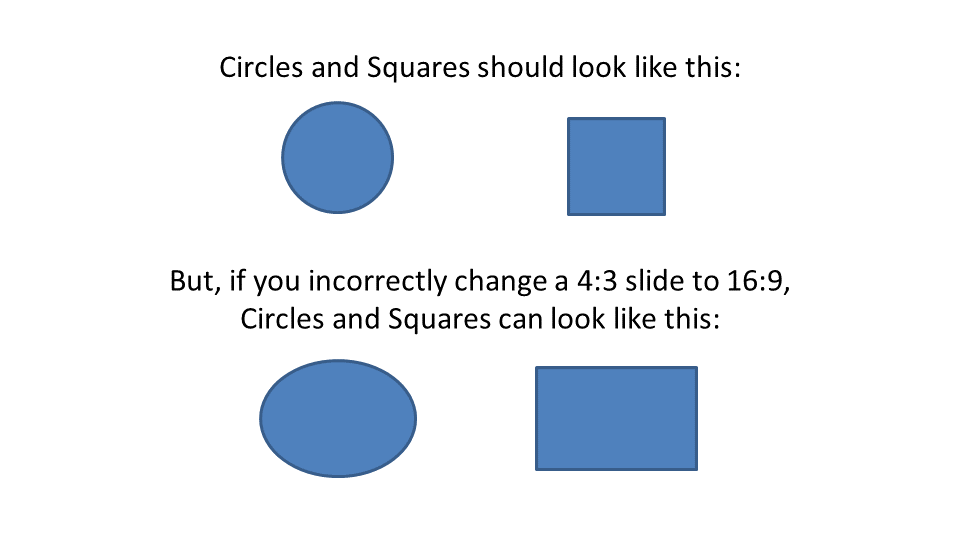
The presentation layout must be set before creating the presentation. You cannot simply take an existing 4:3 presentation and change it to 16:9. If you do, images might become stretched, (e.g., circles will become ovals, squares will become rectangles). In some instances, images are not changed at all, but everything else in the slide might change, such as size and position.
For more information about sizing PowerPoint presentations, please refer to
Microsoft’s Support site:
Microsoft
PowerPoint Support – Slide Sizing
Images within PowerPoint
The most recommended image types are .JPG or .PNG images – 1920×1080 pixels for full HD, @150dpi (Minimum). However, images at 1280×720 pixels can sometimes be acceptable.Important! Do not just rely on the pixel count or DPI to ensure that your images look good. Even a poor-quality image can be saved at a high pixel count image. Be sure that the image is clear and does not look pixelated or has jagged lines, artifacts, image noise, etc. Remember – If it does not look good on your computer screen, it will look even worse when it is projected onto a large screen.
Fonts in PowerPoint
If your presentation uses any non-standard fonts, please provide the font with the presentation. How do you know if your font is non-standard? Typically, if you had to purchase the font, (i.e., it was not part of Windows or MS Office font package), chances are it is a non-standard font.
For more information about using fonts in PowerPoint, please refer to Microsoft’s
support site:
Microsoft
PowerPoint Support – Embedding Custom Fonts.
Embedding and Playing Videos Within PowerPoint
When embedding videos in PowerPoint, the recommended video format is .MP4 file with H.264 Encoding, and AAC Audio, 1920 x 1080 pixels, Minimum of 10 Mbps Data Rate (Bit Rate) and a Frame Rate of 29.97. Note: Many videos are now recorded at lower frame rates, such as 24fps. We recommend that frame rate of 29.97 because when projecting videos with a lot a fast motion onto a large screen, the appearance of image lag or stuttering can sometimes be seen.
For more information about using custom videos in PowerPoint, please refer to
Microsoft’s Support site:
Microsoft
PowerPoint Support – Videos
Apple Keynote
Keynote defaults slides to a 16:9 format.For videos in Keynote, .MP4 file with H.264 Encoding and AAC Audio, 1920 x 1080 pixels, Minimum of 10 Mbps Data Rate (Bit Rate) and a Frame Rate of 29.97. While QuickTime .MOV video format can also be used, H.264 offers more compatibility.
For more information about Apple Keynote, please refer to Apple’s Support site:
Apple Keynote
Guide
If you have any questions or for further assistance, including how we can create or re-create your presentation, please contact us for more information: Contact Us!